> ## Documentation Index
> Fetch the complete documentation index at: https://docs.joinmassive.com/llms.txt
> Use this file to discover all available pages before exploring further.
# iOS
> The Massive SDK provides a new way to monetize app features and content without annoying ads or low-converting paywalls.
## Latest release
| | | |
| -------------------------------------- | ------------------------- | ---------------------------------------------------------- |
| | iOS SDK | [Download](https://partners.joinmassive.com/sdk/downloads) |
| | Sample iPhone Application | [Download](https://partners.joinmassive.com/sdk/downloads) |
## Technical Requirements
| | |
| ---------------------- | --------------- |
| iOS Minimum Deployment | `16.0` |
| iOS Deployment Target | `16.0` or later |
| Swift version | `5.10` or later |
| Capabilities required | None |
## Integration Guide
### Dependency configuration in Xcode
To integrate the Massive SDK into your iOS project, set up the SDK as a dependency in the target's settings.
1. Go to the target's settings and select the `General` tab.
2. Drag and drop the Massive SDK `xcframework` file into the `Frameworks, Libraries, and Embedded Content` section.
3. Ensure that the `xcframework` is set to Embed & Sign.
### Integration to the app
Here's an example of how to integrate the Massive SDK into an iOS app. This sample demonstrates the essential steps such as initializing Massive, handling user consent, and starting or stopping the SDK.
#### 1. Obtain the API token
Massive SDK API token is available in the [applications](https://partners.joinmassive.com/sdk/applications) page.
#### 2. Initialize MassiveClient
Initialize the client with the API token and handle the result in the callback:
```swift theme={null}
MassiveClient.shared.initAsync(apiToken: {API_TOKEN}) { status in
switch status {
case .initialized:
// Handle successful initialization
case .error:
// Handle initialization error
default:
// Handle other states when massive is already initialized
}
}
```
#### 3. Request user consent
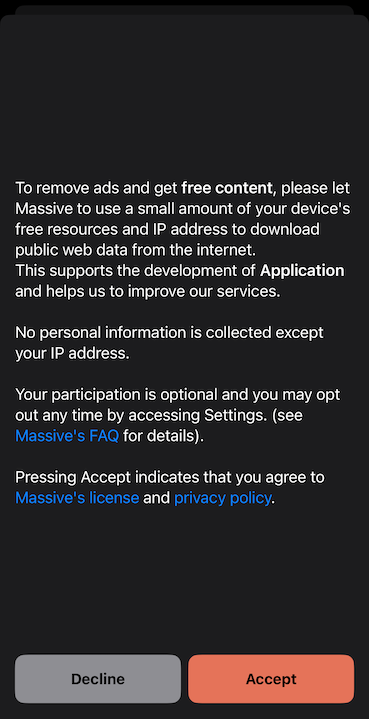
Before starting the SDK, obtain user consent for the terms of resource exchange.
Here is a sample consent screen:
 #### 4. Start usage
After receiving user's consent, start usage using `start()` method:
```swift theme={null}
// Check if the user gives consent to use Massive, and show the dialog if we need to request it.
if (!isConsentGiven()) {
showConsentDialog()
}
if (MassiveClient.shared.start()) {
// Handle successful start
}
```
#### 5. Query network usage
Having the SDK initialized, you can query the network usage anytime independently of the SDK state.
The usage is in bytes and can be converted to more suitable units for display.
```swift theme={null}
let usage = MassiveClient.shared.getNetworkUsage()
let usageInBytes = Double(usage)
let usageInKB = usageInBytes / 1024
let usageInMB = usageInKB / 1024
let usageInGB = usageInMB / 1024
// Display the usage
```
#### 6. Stop usage
To stop the SDK, use the `stop()` method:
```swift theme={null}
MassiveClient.shared.stop()
```
#### 7. Register a task to run in the background
First, enable the **background processing** mode in the app capabilities and add the `com.massive.sdk.startBackground` task ID to the list of permitted task identifiers.
Then, register a task to run in the background calling the `startBackground()` method in the provided closure. This must be done before the end of the app launch sequence.
```swift theme={null}
let TASK_ID = "com.massive.sdk.startBackground"
BGTaskScheduler.shared.register(forTaskWithIdentifier: TASK_ID, using: nil) { task in
MassiveClient.shared.startBackground(task: task as! BGProcessingTask)
}
```
## Sample application
Massive SDK comes with a sample application showing project configuration, API integration, and consent screen.
The archive with the sample contains a *README* file with instructions to set up and run the application.
### Technical details
#### 1. Shared instance of the `MassiveClient`
The MassiveClient class is designed as a singleton, ensuring that only one instance of the client is active throughout the application's lifecycle. This design simplifies the management of the client's state and its interactions with the Massive network.
#### 2. One-time initialization
The SDK should be initialized only once per application launch. Attempts to reinitialize the SDK after a successful initialization will simply return its current state.
***The SDK must be reinitialized if the application is terminated and relaunched.***
#### 3. User Consent Before Starting SDK Usage
Before starting the SDK (using the `start()` method), it is mandatory to obtain user consent for the terms of resource exchange. This aligns with user privacy and control principles. Ensure that your application includes a clear and understandable consent mechanism.
```swift theme={null}
if (isUserConsentGiven) {
MassiveClient.shared.start()
}
```
#### 4. State persistence
The SDK state persists when the application goes into the background. This ensures that the SDK continues to operate correctly when the application is resumed.
***The SDK state is not saved across different launches of the application.***
#### 5. Separate initialization and usage start
Initializing the SDK does not automatically start its operation. This separation allows you to initialize the SDK early in your app's lifecycle (e.g., during app startup) and start its operation only after obtaining user consent.
#### 6. Background processing
The SDK supports background processing to continue its operation when the application is in the background. The application is responsible for registering the background task, but the task scheduling is managed by the SDK.
***The background execution occurs only when the device is charging to preserve battery life.***
#### 7. Network usage data
The SDK provides network usage data in bytes and can be queried at any time after the SDK is initialized. The usage reported by the SDK is cumulative and represents the total network usage since the SDK was initialized for the first time.
***The data does not persist across application reinstalls.***
#### 4. Start usage
After receiving user's consent, start usage using `start()` method:
```swift theme={null}
// Check if the user gives consent to use Massive, and show the dialog if we need to request it.
if (!isConsentGiven()) {
showConsentDialog()
}
if (MassiveClient.shared.start()) {
// Handle successful start
}
```
#### 5. Query network usage
Having the SDK initialized, you can query the network usage anytime independently of the SDK state.
The usage is in bytes and can be converted to more suitable units for display.
```swift theme={null}
let usage = MassiveClient.shared.getNetworkUsage()
let usageInBytes = Double(usage)
let usageInKB = usageInBytes / 1024
let usageInMB = usageInKB / 1024
let usageInGB = usageInMB / 1024
// Display the usage
```
#### 6. Stop usage
To stop the SDK, use the `stop()` method:
```swift theme={null}
MassiveClient.shared.stop()
```
#### 7. Register a task to run in the background
First, enable the **background processing** mode in the app capabilities and add the `com.massive.sdk.startBackground` task ID to the list of permitted task identifiers.
Then, register a task to run in the background calling the `startBackground()` method in the provided closure. This must be done before the end of the app launch sequence.
```swift theme={null}
let TASK_ID = "com.massive.sdk.startBackground"
BGTaskScheduler.shared.register(forTaskWithIdentifier: TASK_ID, using: nil) { task in
MassiveClient.shared.startBackground(task: task as! BGProcessingTask)
}
```
## Sample application
Massive SDK comes with a sample application showing project configuration, API integration, and consent screen.
The archive with the sample contains a *README* file with instructions to set up and run the application.
### Technical details
#### 1. Shared instance of the `MassiveClient`
The MassiveClient class is designed as a singleton, ensuring that only one instance of the client is active throughout the application's lifecycle. This design simplifies the management of the client's state and its interactions with the Massive network.
#### 2. One-time initialization
The SDK should be initialized only once per application launch. Attempts to reinitialize the SDK after a successful initialization will simply return its current state.
***The SDK must be reinitialized if the application is terminated and relaunched.***
#### 3. User Consent Before Starting SDK Usage
Before starting the SDK (using the `start()` method), it is mandatory to obtain user consent for the terms of resource exchange. This aligns with user privacy and control principles. Ensure that your application includes a clear and understandable consent mechanism.
```swift theme={null}
if (isUserConsentGiven) {
MassiveClient.shared.start()
}
```
#### 4. State persistence
The SDK state persists when the application goes into the background. This ensures that the SDK continues to operate correctly when the application is resumed.
***The SDK state is not saved across different launches of the application.***
#### 5. Separate initialization and usage start
Initializing the SDK does not automatically start its operation. This separation allows you to initialize the SDK early in your app's lifecycle (e.g., during app startup) and start its operation only after obtaining user consent.
#### 6. Background processing
The SDK supports background processing to continue its operation when the application is in the background. The application is responsible for registering the background task, but the task scheduling is managed by the SDK.
***The background execution occurs only when the device is charging to preserve battery life.***
#### 7. Network usage data
The SDK provides network usage data in bytes and can be queried at any time after the SDK is initialized. The usage reported by the SDK is cumulative and represents the total network usage since the SDK was initialized for the first time.
***The data does not persist across application reinstalls.***