> ## Documentation Index
> Fetch the complete documentation index at: https://docs.joinmassive.com/llms.txt
> Use this file to discover all available pages before exploring further.
# Usage Alerts
> How to set up usage alerts on the [partners](https://partners.joinmassive.com) page
Usage alerts help you stay informed when your usage reaches a certain threshold.
You can set up alerts to receive notifications via email, ensuring you never exceed
your desired limits. Follow these simple steps to configure and manage your alerts.
**Note**:
* Alerts work only with **residential proxies**.
* Alerts apply **within a single billing cycle**. For example, if you set an alert for 10GB, use 9GB, and your plan renews, using 1GB more in the new cycle will not trigger the previous alert.
* Alerts are processed asynchronously, so they may trigger with a slight delay after requests to Massive Proxy are made
* You can create up to **10 alerts per account**. If you need more, please contact our team.
## Create a New Alert
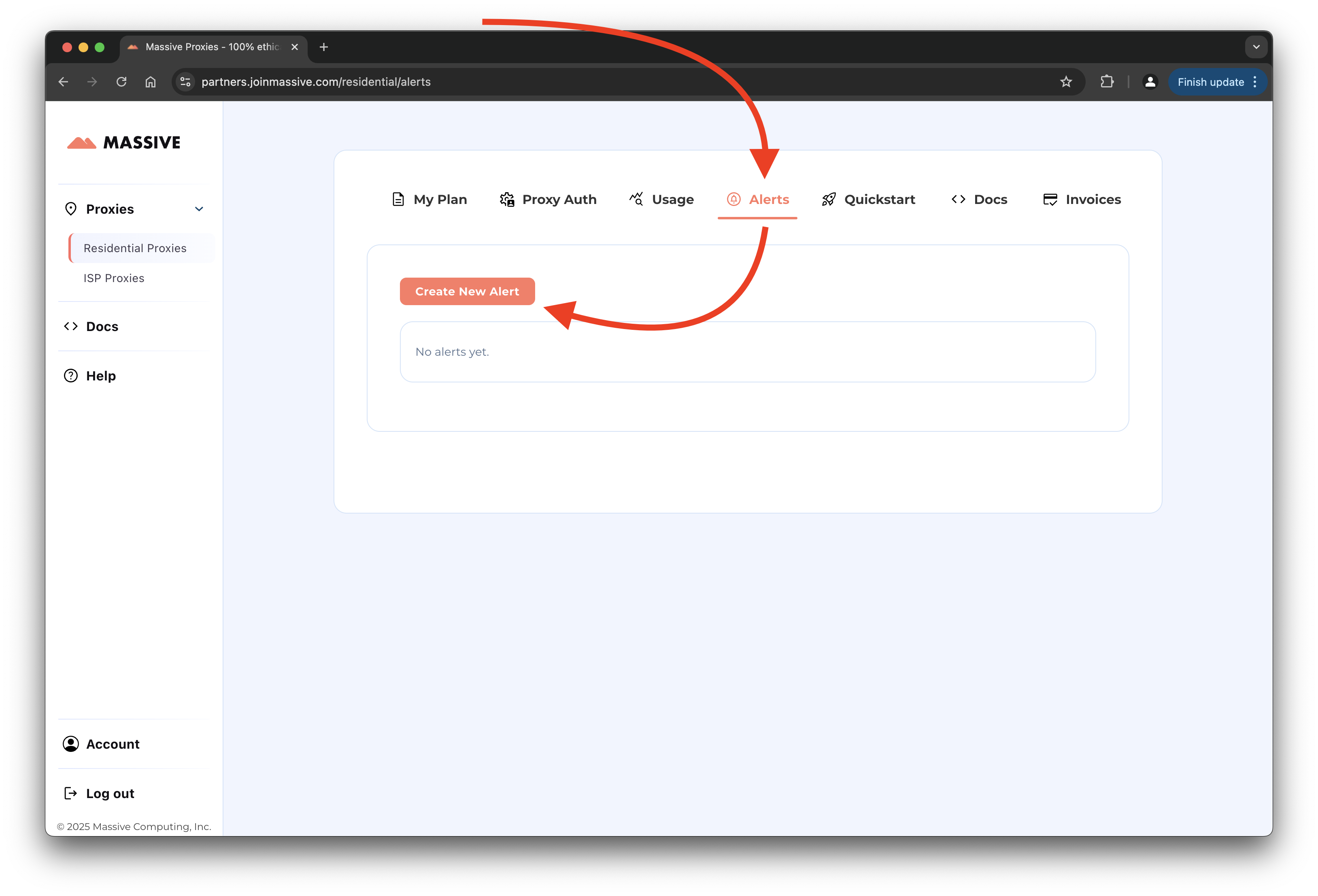
1. Go to the [Alerts](https://partners.joinmassive.com/residential/alerts) tab and click **Create New Alert**
 2. Fill in the alert details:
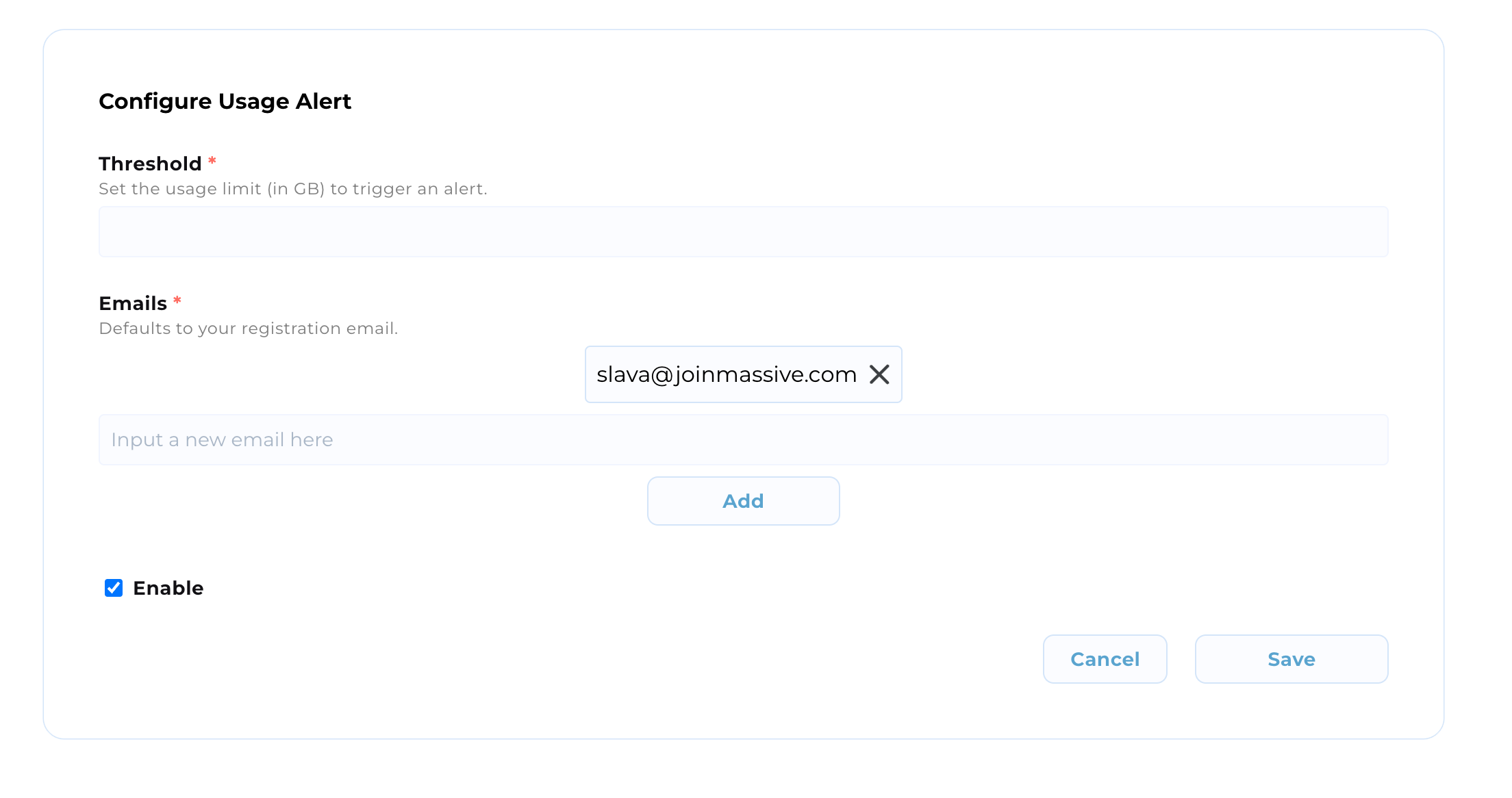 where
* **Threshold**: Set the GB value that triggers an alert.
* **Emails**: Add recipients for the alert (default is your registration email).
* **Enable**: Toggle to activate the alert after creation (default to enabled).
Example:
where
* **Threshold**: Set the GB value that triggers an alert.
* **Emails**: Add recipients for the alert (default is your registration email).
* **Enable**: Toggle to activate the alert after creation (default to enabled).
Example:
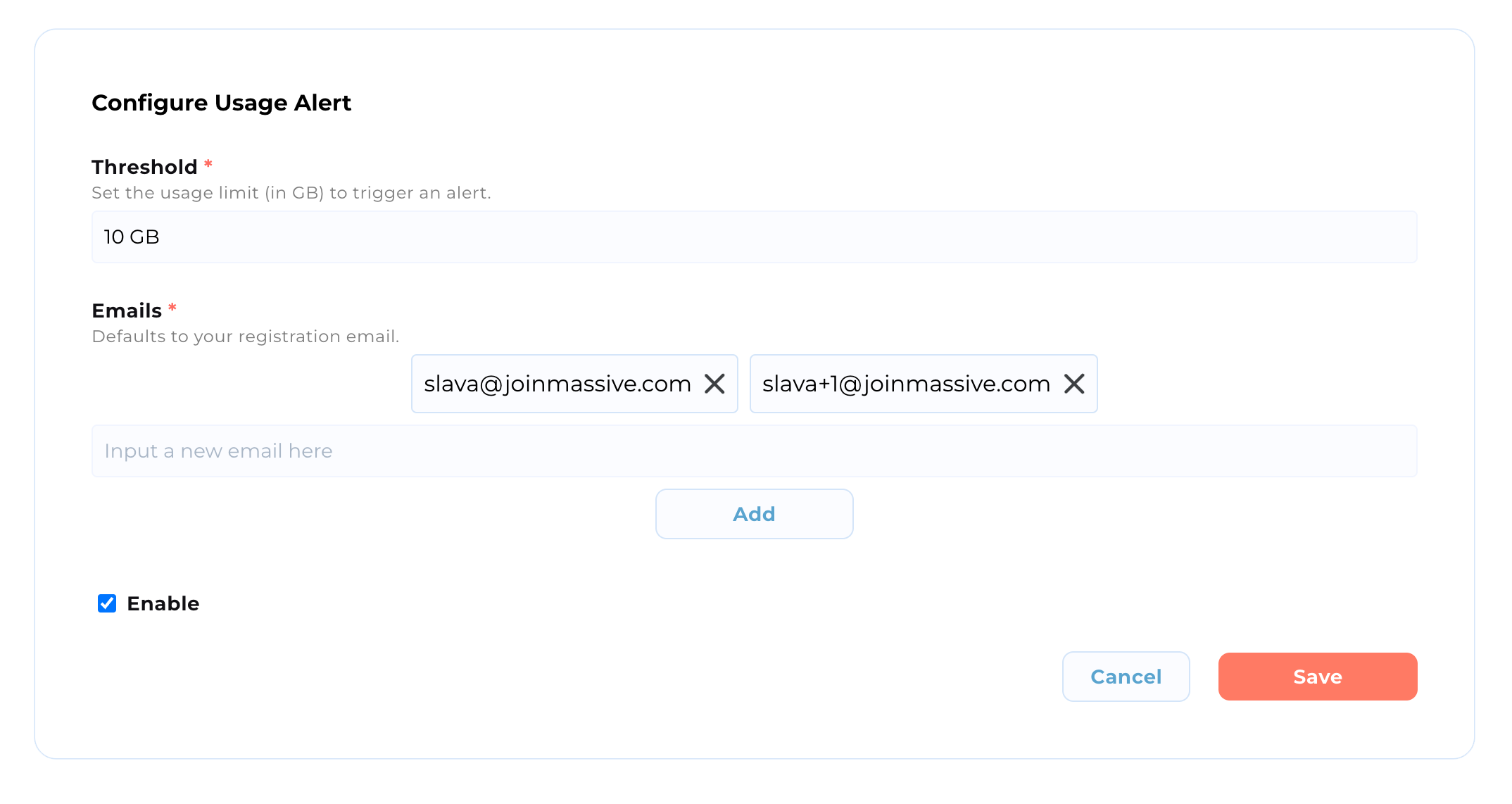 3. Click **Save** to activate the alert.
## Manage Existing Alerts
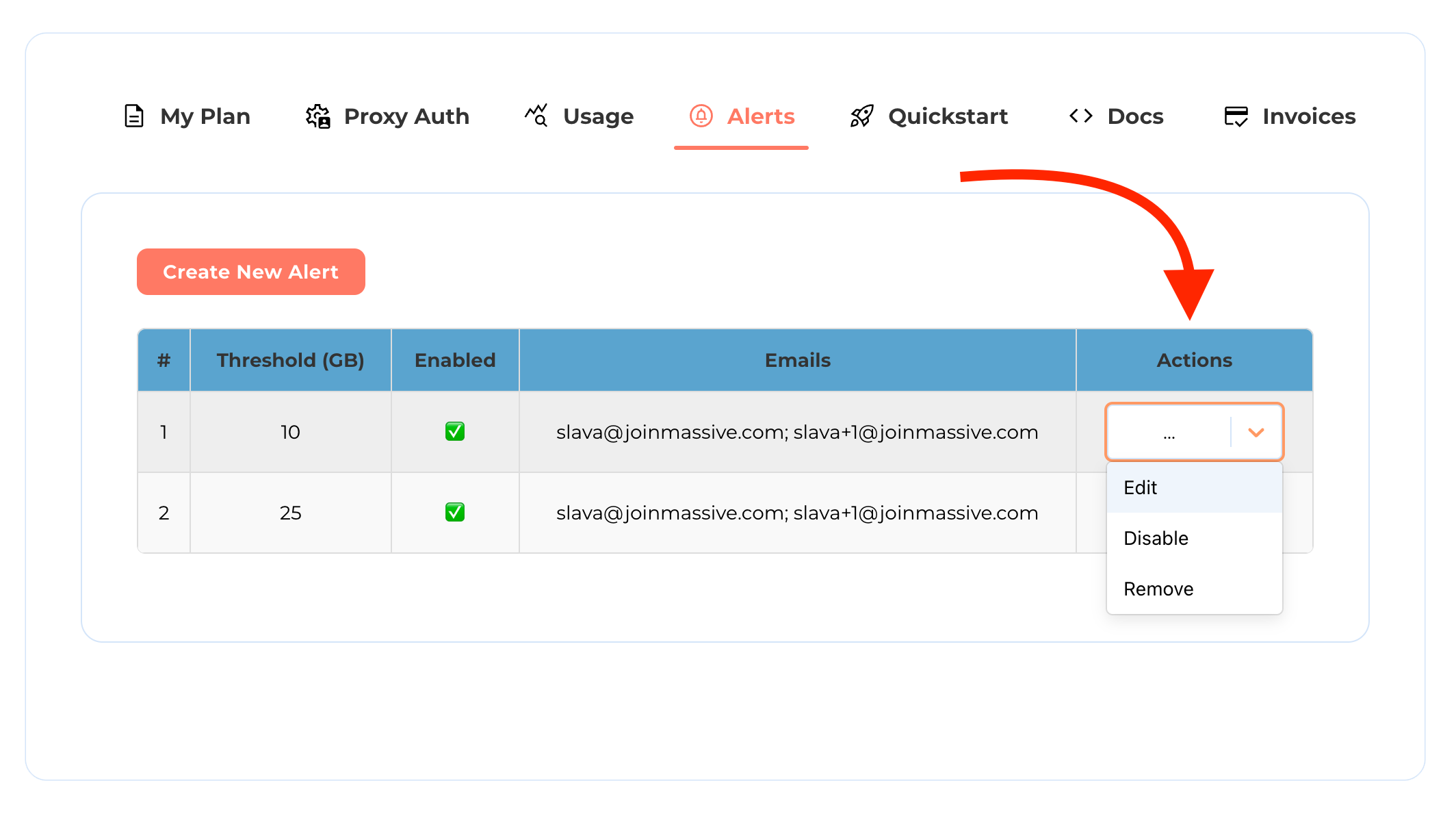
4. Use the **Actions** column to edit, disable, or remove alerts:
3. Click **Save** to activate the alert.
## Manage Existing Alerts
4. Use the **Actions** column to edit, disable, or remove alerts:
 ## Example Alert Email
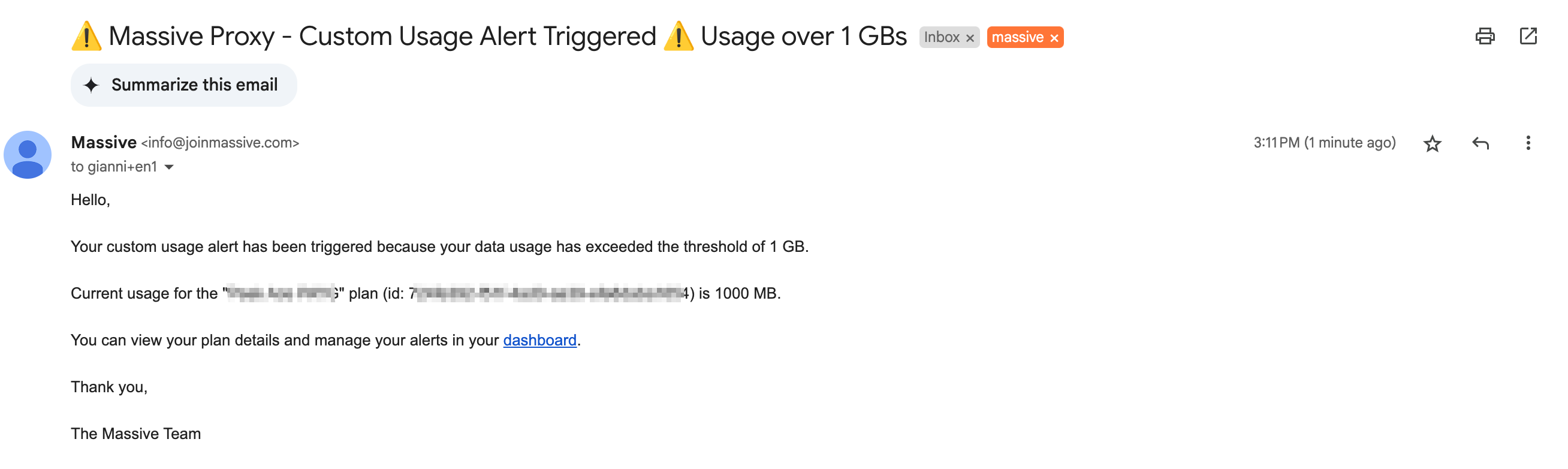
As a result, you should receive the following email in your inbox:
## Example Alert Email
As a result, you should receive the following email in your inbox:
 With the following content: